
Availability. LHDN e-Invoice (MyInvois submission) is available on the Business plan.
What EzFlow does for you
- TIN validation - check a customer’s Tax Identification Number against LHDN before you invoice.
- MyInvois submission - submit invoices directly; EzFlow tracks their validation status.
- Consolidated e-invoices - batch multiple sales into a single consolidated e-invoice.
- Credit & debit notes - issue and submit adjustments correctly.
- Guided setup wizard and an in-app readiness banner.
Before you start: two one-time steps
1
Get your TIN (sole proprietors especially)
Make sure you have a TIN linked to your business on LHDN MyTax.
2
Add EzFlow as your intermediary
So EzFlow can submit e-invoices to MyInvois on your behalf.
Sole proprietors: register as “Business Owner” first
Under LHDN’s policy, sole proprietors who want to submit e-invoices using their Business Registration Number (BRN) must first be recognised as the “Business Owner” in the LHDN MyTax Portal. This links your individual tax number (TIN, starts with IG) to your business. Many sole proprietors don’t have this yet, and it must be created before e-invoicing will work. You’ll need: Registration No. Type = Business Registration Number (BRN); your sole proprietorship’s BRN; and your personal TIN (e.g.IG1234567890).
Log in to MyTax and open your Profile
Go to mytax.hasil.gov.my and log in. If the Business Owner
role isn’t assigned yet, you’ll only see Individual under Role Selection. Click the
Profile icon in the top-right corner.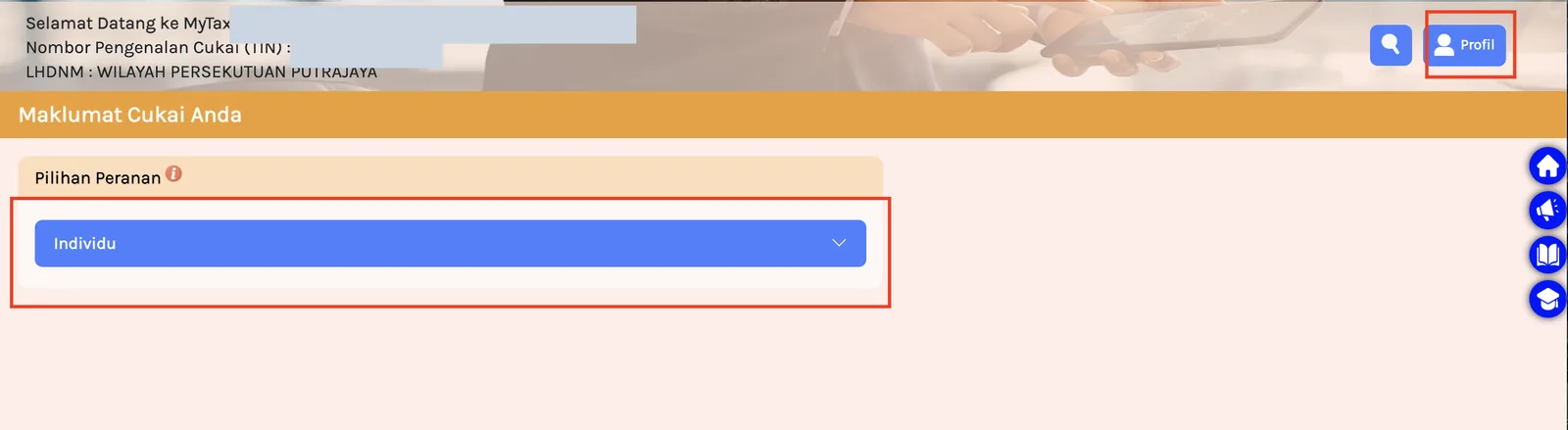
Go to the Role Application tab
Select the third tab, Role Application (Permohonan Peranan).
Complete the application
Then: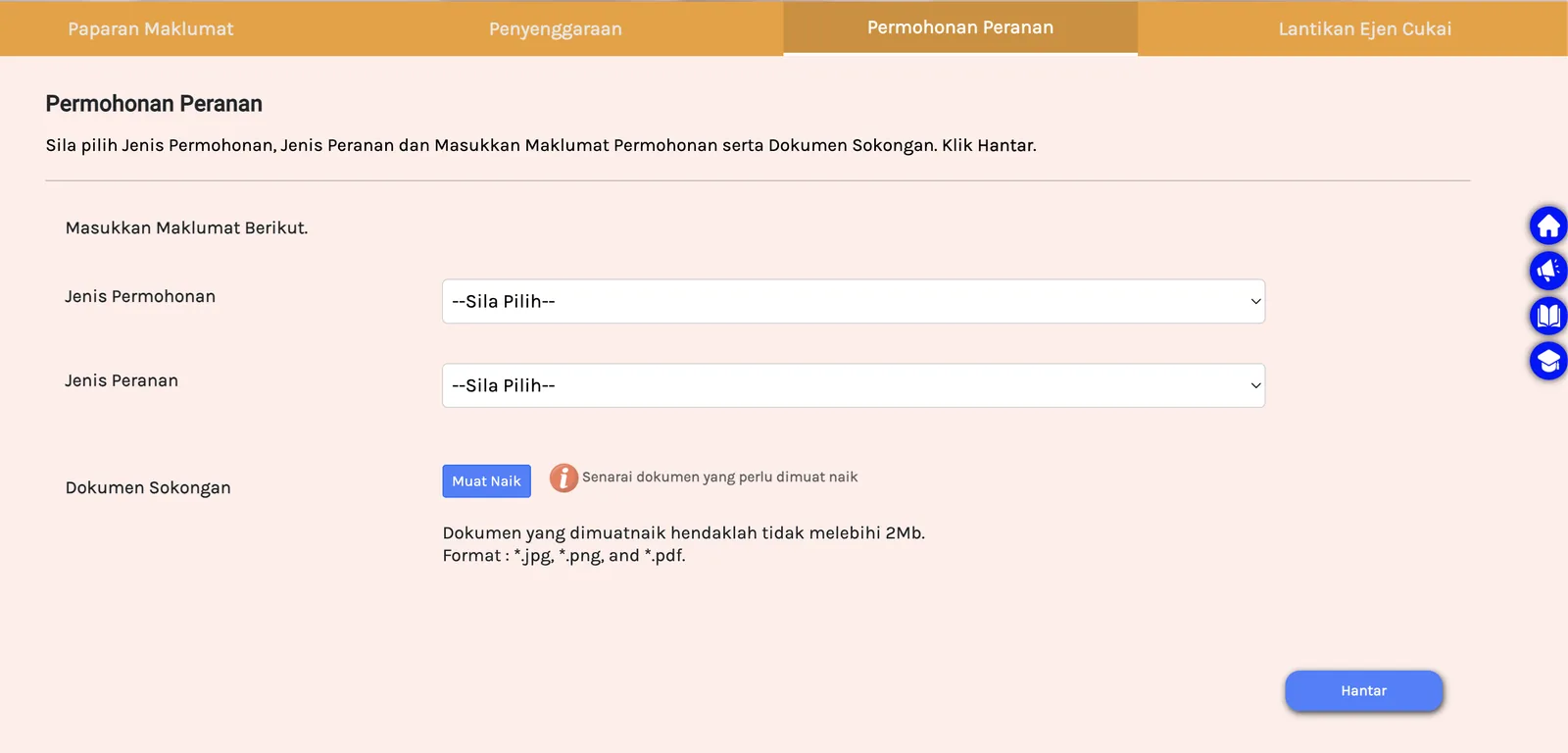
- Type of Application → New Application
- Type of Role → Business Owner
- Enter your personal TIN
- Upload your business registration certificate (or your IC if you don’t have one) - one file, max 2MB,
.jpg/.png/.pdf - Tick the acknowledgement box
- Click Submit
Sign and submit
A signature view appears - follow the prompts to digitally sign your application.
Await approval
You’ll see a success notification. LHDN acts within about 5 working days and emails you
the outcome. Once approved, Business Owner appears in your MyTax role list.
Add EzFlow as your intermediary
So EzFlow can submit e-invoices to MyInvois on your behalf, add EzFlow as an intermediary in your MyInvois Portal, using the details below. EzFlow intermediary detailsLog in to MyInvois
Go to myinvois.hasil.gov.my.
Open View Taxpayer Profile
Top-right, open the profile dropdown and select View Taxpayer Profile.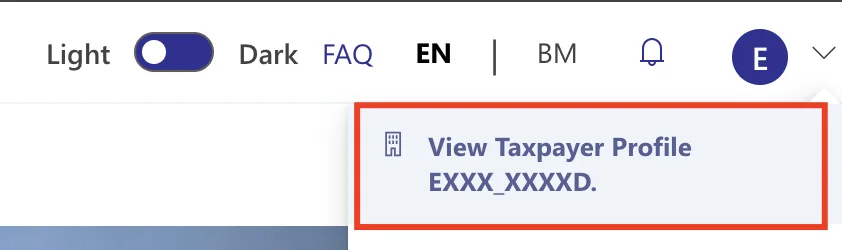
Open the Intermediaries tab, then Add Intermediary
Scroll to the Representatives section, click the Intermediaries tab, then click
Add Intermediary (highlighted below).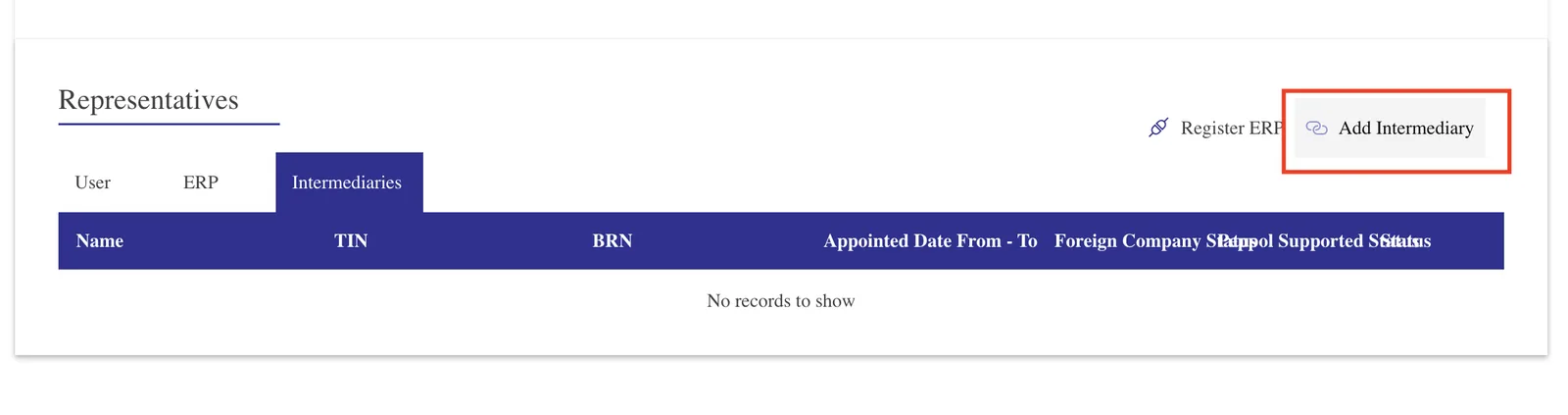
Enter EzFlow's details and search
Enter EzFlow’s TIN, BRN and Name from the card above, complete the captcha, and
click Search. When the Status shows Active, click Continue.
Set dates and permissions, then save
Set the representation date range (you can set up to 10 years), enable all
permissions (Document Submit, Cancel, Request Rejection, and Notifications - Document View
is always on), then click Add Intermediary to save.
Done
EzFlow is now added as your intermediary. You can start submitting e-invoices from EzFlow.
Set up e-Invoice in EzFlow
Once the two steps above are done, connect it in the app:Open e-Invoice settings
Dashboard → e-Invoice.
Run the guided setup wizard
EzFlow walks you through each field.
Validate a test TIN
Confirm TIN validation is working.
Submit your first e-invoice
Send it to MyInvois with one click.
Everyday use
- Create your invoice as normal.
- Add the customer’s TIN - EzFlow validates it against LHDN.
- Submit to MyInvois with one click.
- Watch the status update (submitted → validated) inside EzFlow.
MyTax and MyInvois screens can change. If a screen looks different, follow the on-screen prompts.
Related
- Payments & Invoicing - the underlying invoice flow.
- FAQ - common e-invoice questions.