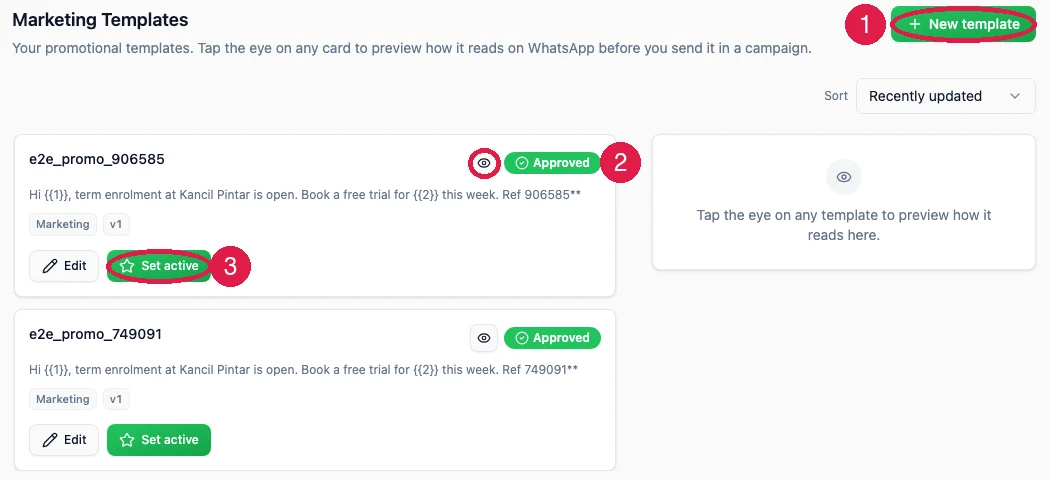
The Marketing Templates tab
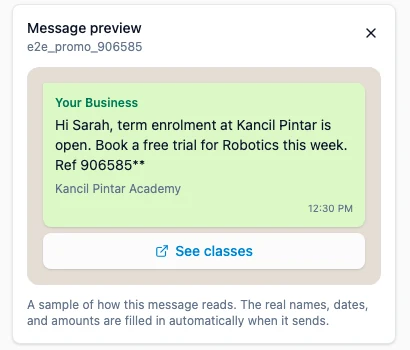
Write a template
Open Marketing Templates and press New template at the top right.1
Give it a name only you see
The first field is Template name, and the app suggests something like
weekend_promo. This
name is only for you and your customer never sees it. It must be lowercase letters, numbers and
underscores only. Use something you will recognise in a list six months from now, for example
raya_open_house rather than promo2.2
Write the message
The second field is Message, and this is what your customer actually reads. The counter under
the box shows how much room you have left out of 1024 characters.
3
Add the personalised bits
You will not want to send “Hi there” to everyone when you know their name. That is what
placeholders are for.Type 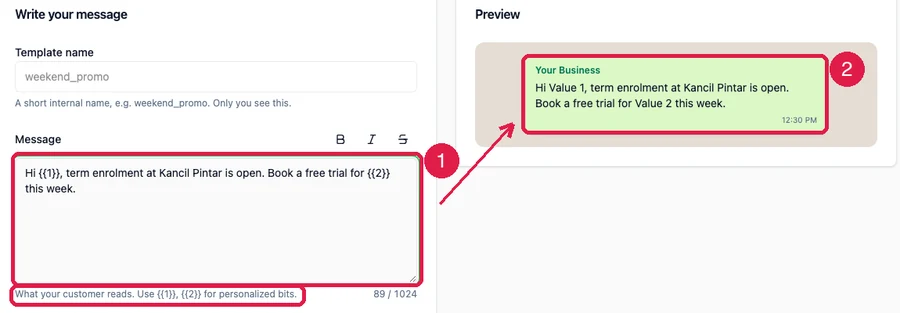 Box 1 is what you type, placeholders and all. Box 2 is the live preview beside it, which
shows the same message with each placeholder filled in, so you can see what a customer will read
before you submit anything.
Box 1 is what you type, placeholders and all. Box 2 is the live preview beside it, which
shows the same message with each placeholder filled in, so you can see what a customer will read
before you submit anything.
{{1}} where you want the first personalised word to go, {{2}} for the second, and so
on. The helper text under the box says exactly this: use {{1}}, {{2}} for personalised bits.So a message reading Hi {{1}}, our Raya open house is on {{2}}. Bring the family, the
first class is free. arrives at one customer as Hi Aisyah, our Raya open house is on Saturday
21 March. Bring the family, the first class is free, and at the next customer with their own
name.4
Say what fills each placeholder
Scroll down to Personalize. There is one row for every placeholder you typed. Each row has
two parts.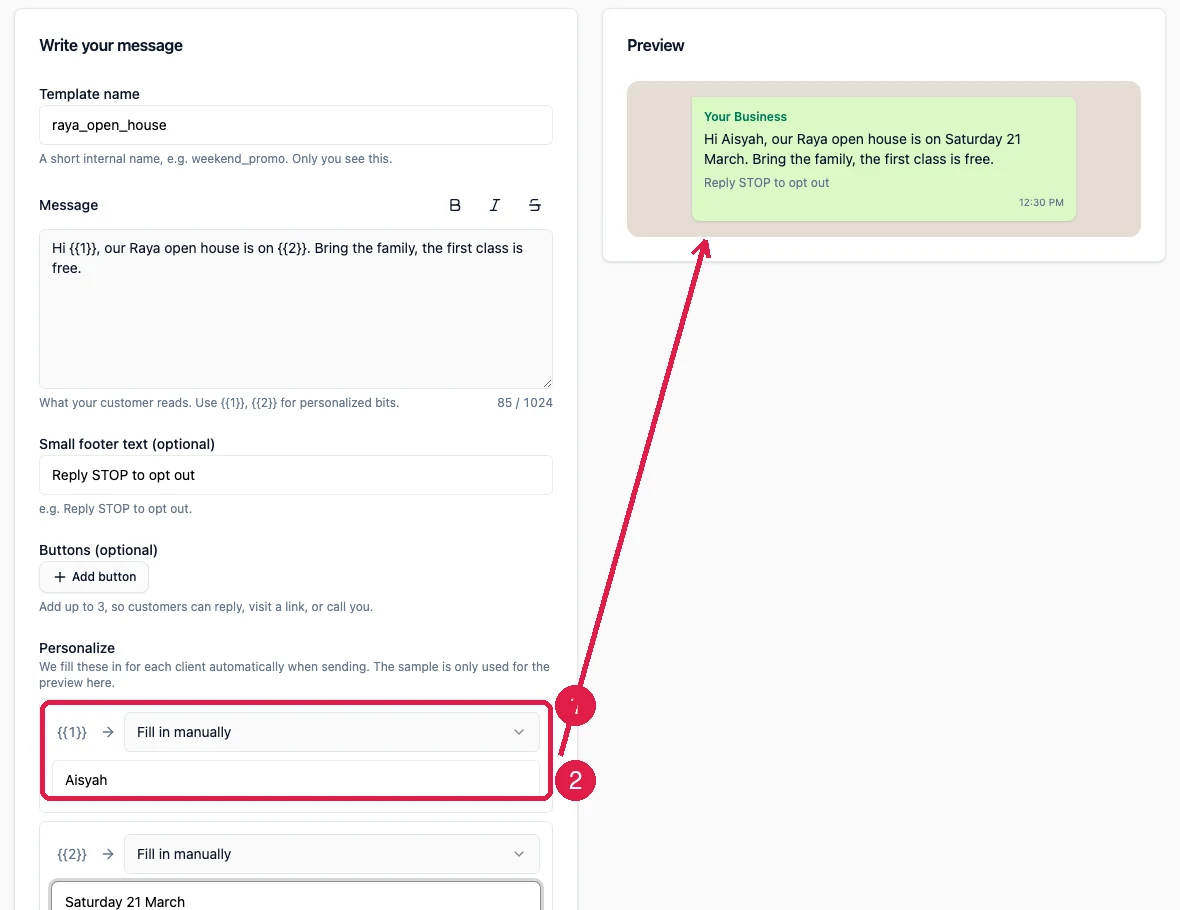 1. The dropdown says where the real value comes from. Pick a customer field, such as their
name, and EzFlow fills it in for every person automatically when the campaign sends. Fill in
manually means you will type it yourself.2. The sample. WhatsApp needs an example value for every placeholder before it will review
the template. Type a realistic one, such as a name or a date. The sample only appears in the
preview and in WhatsApp’s review. Your customers never see it.You cannot submit until every placeholder has a sample. The builder tells you so if one is
missing.
1. The dropdown says where the real value comes from. Pick a customer field, such as their
name, and EzFlow fills it in for every person automatically when the campaign sends. Fill in
manually means you will type it yourself.2. The sample. WhatsApp needs an example value for every placeholder before it will review
the template. Type a realistic one, such as a name or a date. The sample only appears in the
preview and in WhatsApp’s review. Your customers never see it.You cannot submit until every placeholder has a sample. The builder tells you so if one is
missing.
5
Add a footer and buttons if you want them
Small footer text (optional) is the little grey line at the bottom of the message. The app
suggests
Reply STOP to opt out, which is a good thing to keep on marketing messages because it
makes leaving easy and keeps complaints down.Buttons (optional) adds up to three tappable buttons under the message. A button can give
the customer a quick reply, open a website, or dial a phone number.Check it before you submit
Press Check for problems. EzFlow reads your template the way WhatsApp will and tells you what it finds, which is faster than waiting hours to be rejected.

Submit for approval
When you are happy, press Submit for approval. A confirmation box appears titled Submit for approval.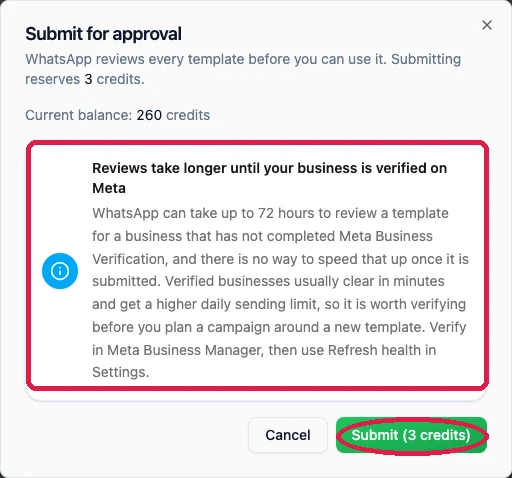
Set the approved version active
Approval on its own is not enough, and this is the step people miss most often. Each template card has an Edit button and a Set active button. Set active is what tells EzFlow that this is the version campaigns should use. A template can be approved and still be used by nothing, because you never made it the active one. So the full order is: write it, check it, submit it, wait for Approved, then press Set active.Editing a template that is already approved
You can edit an approved template, but it goes back into review. While it waits, your customers keep receiving the version that was already approved, so nothing breaks in the meantime. The builder shows this side by side: Sending now on the left, and Your new version (in review) on the right.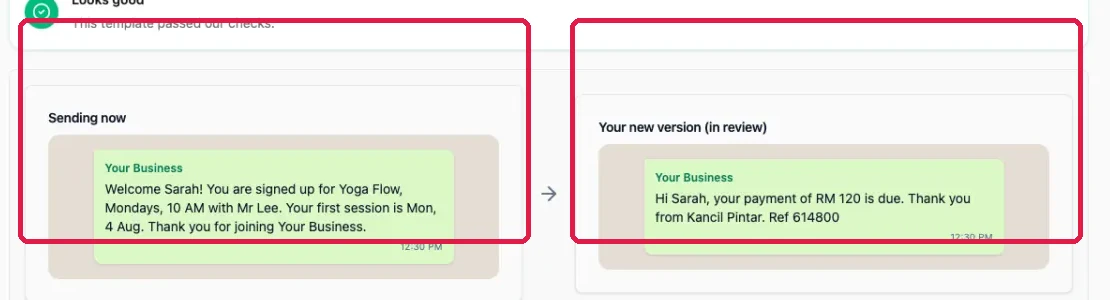
The Utility Templates tab
Utility templates are the automatic messages your customers get after they book, pay, or need a reminder. EzFlow ships them ready made, grouped by what they are for, and you can change the wording.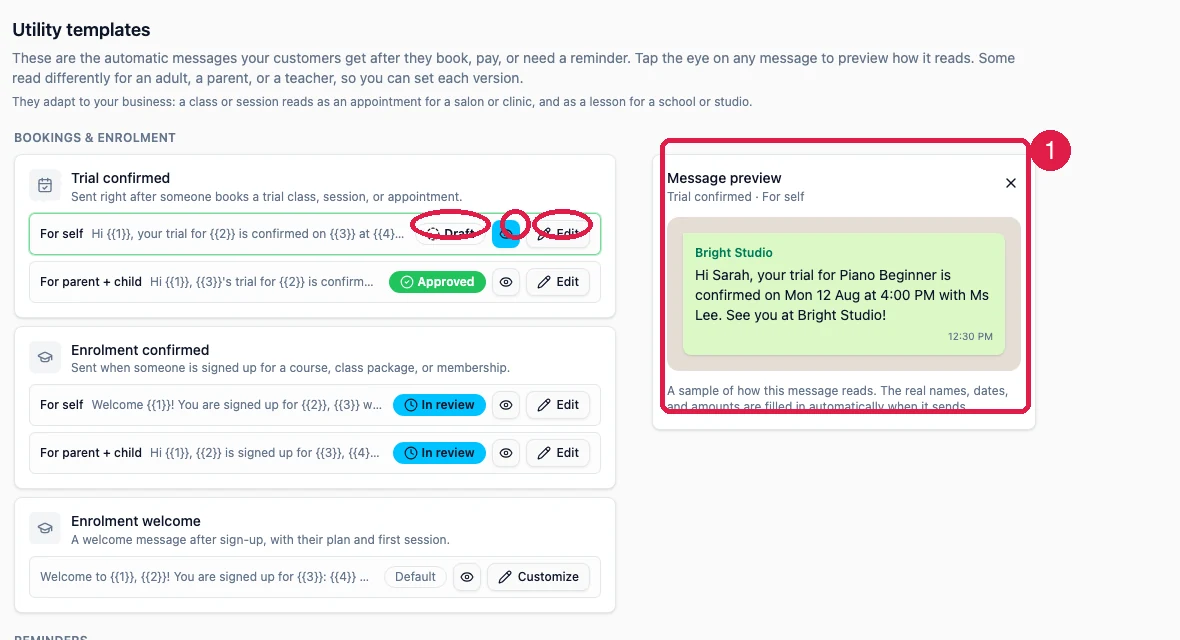
Related
Queues
Watch your template move through approval.
Campaigns
Send an approved template.