Read the number health panel, manage your WhatsApp numbers and what each one sends, edit your business profile, set sending limits and quiet hours, and keep the do-not-message list.
Everything that applies to the whole module lives here. Scroll down the tab and you pass these
sections in order: Number health, Your numbers, Your WhatsApp business profile,
Sending limits, Quiet hours and the Do-not-message list.
This panel is the health check for your WhatsApp account, and it is the first thing to look at when
something feels wrong.
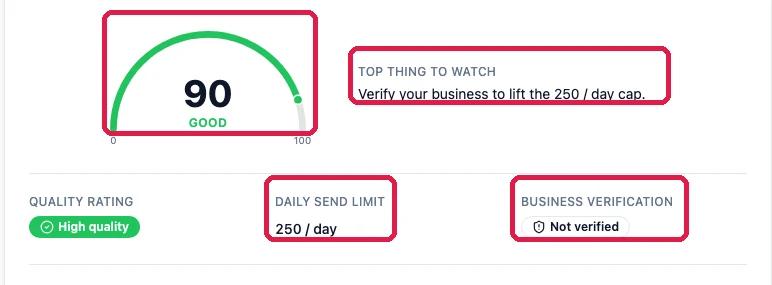
It shows a quality rating out of 100 with a word underneath, for example 90 GOOD. Meta works
this out from how your customers react to your messages. Blocks and reports push it down. Replies
push it up.Under that is your daily send limit, which is how many different people you may message in 24
hours. It starts at 250 and goes up once your business is verified. Beside it is your business
verification status. The panel also shows the top thing to fix, for example “Verify your business
to lift the 250 / day cap.”Press Refresh health after anything changes on Meta’s side, for example when your business
verification comes through.
A falling quality rating is an early warning. Meta does not usually block a number without
warning. The rating drops first. If you see it fall, stop your campaigns, look at what you sent
recently, and send less until it recovers. Ignoring it is how numbers get blocked, and a blocked
number is very hard to get back.
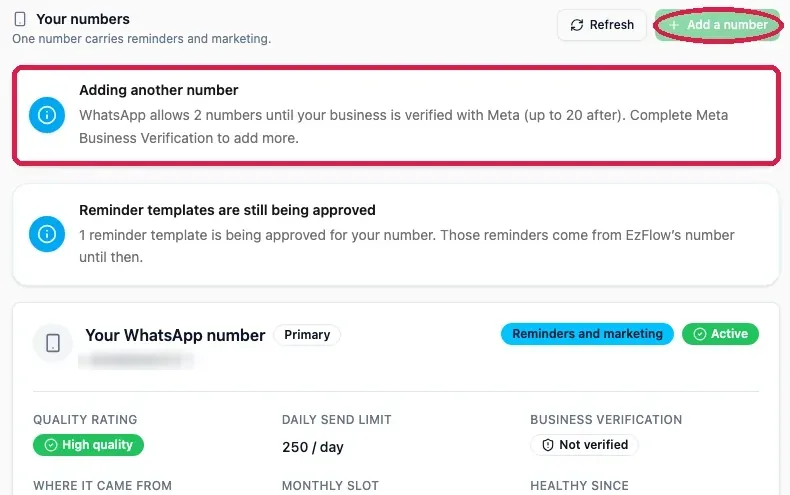
The line under the heading tells you how your numbers are arranged, for example “One number carries
reminders and marketing.” Add a number starts the wizard described in
Add a number. When it is greyed out, the boxed notice tells you
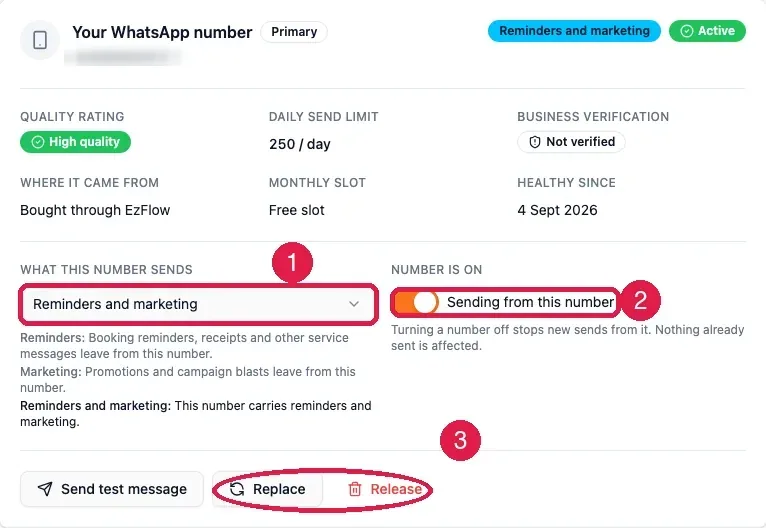
why. The usual reason is that Meta allows 2 numbers until your business is verified.Each connected number is a card.
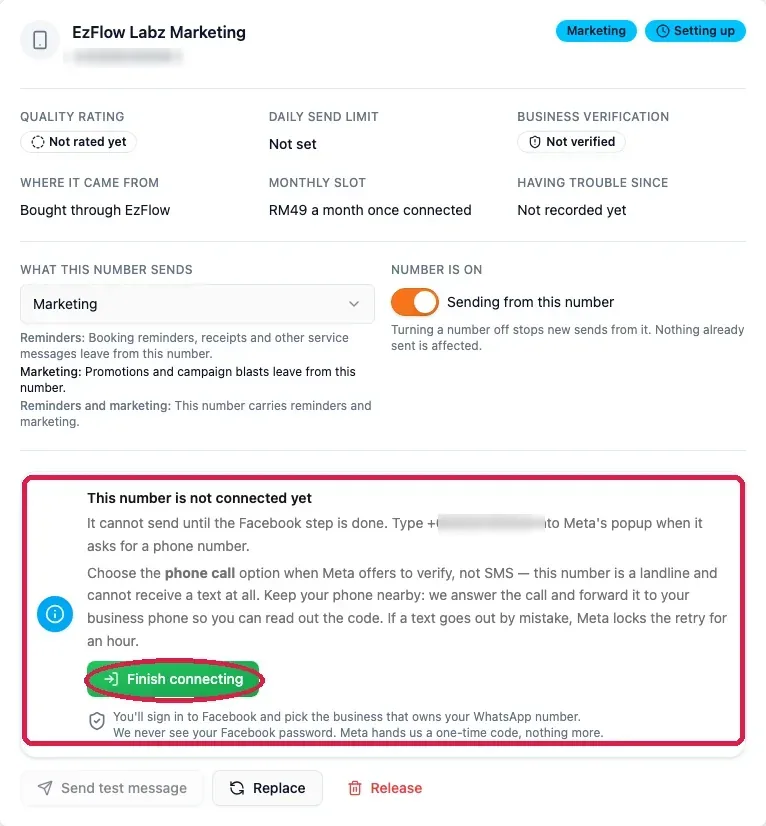
The top of the card shows the number, its purpose and its status, then six facts: Quality
rating, Daily send limit, Business verification, Where it came from, Monthly slot
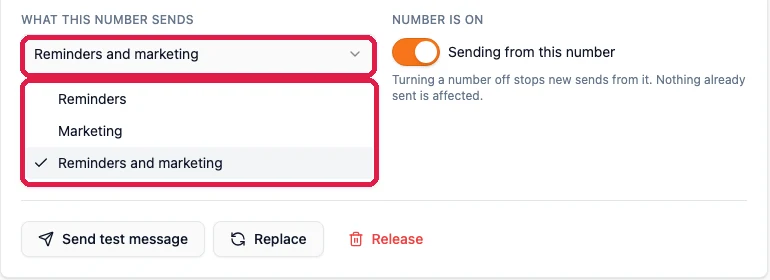
and Healthy since.1. What this number sends. The purpose decides what leaves from that number, and you can
change it here at any time.
Purpose
What leaves from this number
Reminders
Booking reminders, receipts and other service messages.
Marketing
Promotions and campaign blasts.
Reminders and marketing
Both.
2. Sending from this number. Turn this off and the number stops sending. Nothing already sent is
affected. Turn it back on when you are ready.3. Send test message, Replace and Release.Send test message sends one message to your own
phone the moment you press it, so you can prove the whole path works before you message a real
customer. You can send five in ten minutes. After that the button answers Too many requests for
this action until the ten minutes are up. The other two are covered below.
Some actions are for the account owner only. Adding, replacing and releasing a number, and
buying a number, only work when the owner is signed in. A team member who tries sees Only the
account owner can do this. Changing a number’s purpose, switching it on or off, and sending a test
message are open to anyone with marketing access. There is also a ceiling of five number actions an
hour, so a slip of the hand cannot buy or release numbers in a loop.
Why splitting numbers is worth the money. With two numbers you can put promotions on one and
booking reminders on the other. If a campaign upsets people and the marketing number’s rating falls,
your reminders keep going out on a number that was never involved. With one number, a bad campaign
takes your reminders down with it.
A number that has been bought but not yet connected to Meta shows Setting up and a blue box
explaining what is left to do.
Press Finish connecting to go into Meta’s window. The box reminds you of the two things that
matter: type this number into Meta’s popup when it asks, and choose the phone call, not a text
message. The full walk through is on Add a number.Once Meta’s window is done, the badge changes to Registering while WhatsApp finishes on its
side. The card updates by itself and turns Active, usually within a minute or two.
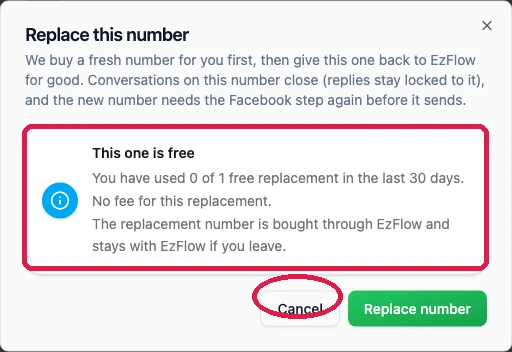
Replace swaps this slot to a different number. EzFlow buys the new number first, then gives the
old one back. Conversations on the old number close, and the new number needs Meta’s connection
step again before it can send.
The boxed part tells you whether this change is free. The rule is simple: one free change every 30 days, counted across all your numbers, not per number and not tied to when you bought it. The 30 days run from your last free change. So if you changed a number 10 days ago, the next free change is 20 days away. A second change inside that window costs RM49. Press Replace number to go ahead, or Cancel.
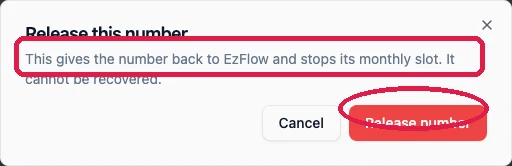
Release gives the number up and stops its monthly slot.
Releasing a number is permanent. Once released, the number goes back to the pool and somebody
else can take it. You cannot get it back, and any customer who saved that number in their phone will
be messaging a stranger. If it is your last number, the app warns you that releasing it moves
reminders back to EzFlow’s shared number and pauses marketing. Only do this if you are certain.
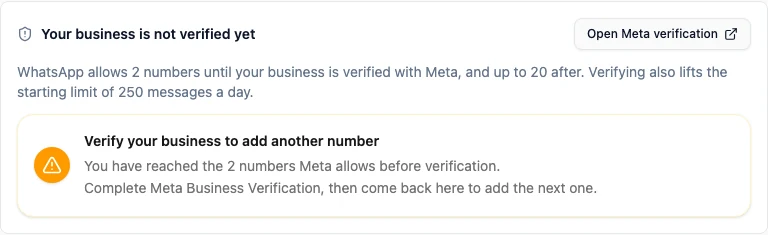
Under your numbers is a card headed Your business is not verified yet, with an Open Meta
verification link.
Until you verify, Meta allows 2 numbers and a starting limit of 250 messages a day. After it, 20
numbers and a much higher limit. It needs real documents and takes days to weeks, so start it early.
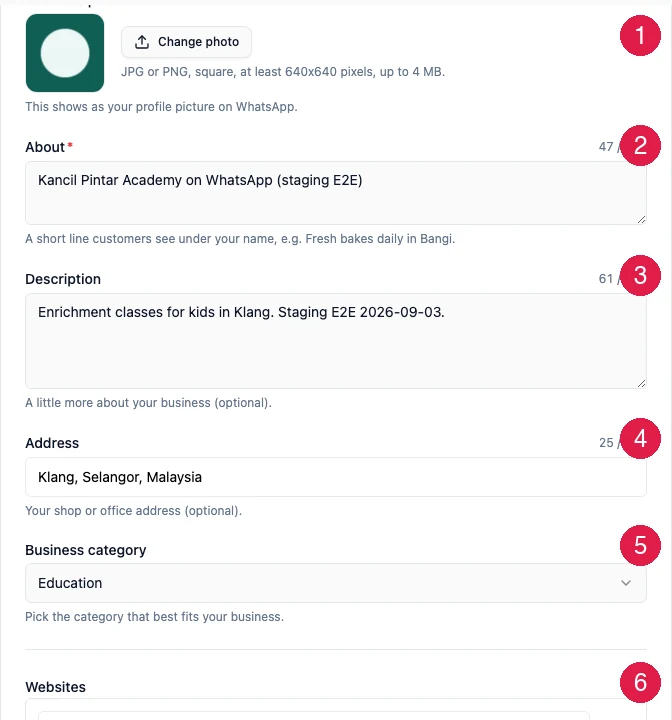
This is what a customer sees when they tap your name at the top of the chat.
1. Change photo. Your profile picture on WhatsApp. JPG or PNG, square, at least 640 by 640
pixels, up to 4 MB.2. About. A short line customers see under your name. This one is required.3. Description. A little more about your business.4. Address. Your shop or office.5. Business category. Pick the one that fits best.6. Websites and email addresses. Up to two of each.Press Save changes at the bottom when you are done.
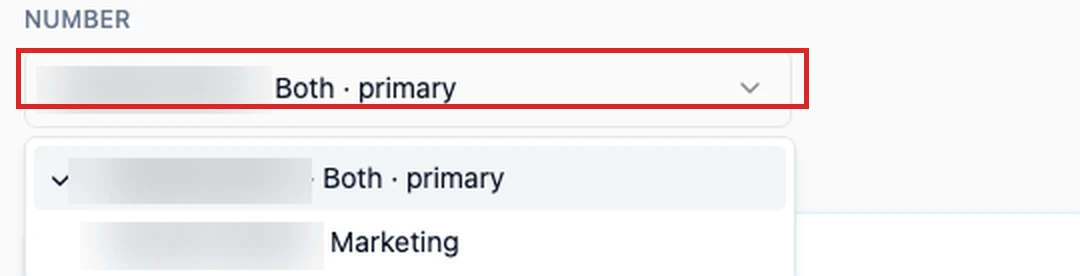
If you have more than one number, a Number dropdown sits at the top of this section.
Pick a number and the form below loads that number’s own profile. Each number keeps its own photo,
about line, description, address, category and links, and saving one never changes another. A line
under the dropdown always tells you which number you are editing.To give a second number its own look: pick it in the dropdown, press Change photo and choose a
square picture, fill in About and whatever else you want, then press Save changes. Switch
back to your first number and you will see its profile is exactly as it was.If you want every number to look the same, set one number up the way you like, save it, then press
Copy this profile to all numbers under the form. It copies that number’s saved profile, photo
included, onto each of your other connected numbers and tells you which ones were updated. A number
that is still connecting is skipped and named in the message.A number that is still connecting shows a note instead of a saveable form until WhatsApp finishes
registering it. A number you brought in from your own WhatsApp account keeps the display name Meta
gave it, and everything else on the form can be changed.
The display name is not here. The name at the top of the chat is set once when the number is
created and Meta locks it after that. Everything on this page can be changed whenever you like, but
not the display name. See Add a number.
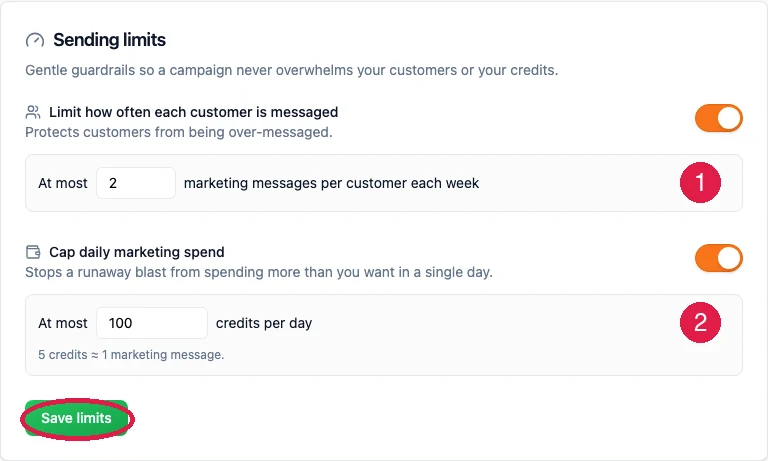
These are your own limits, on top of the ones Meta sets, and they exist so a mistake cannot become an
expensive mistake.
1. Limit how often each customer is messaged. At most a set number of marketing messages per
customer each week. This stops you messaging the same person over and over until they block you.2. Cap daily marketing spend. At most a set number of credits per day. Five credits is one
marketing message. This stops a campaign that runs away and burns your whole balance in one
afternoon.Each limit has a switch, so you can turn it off, but it is better to leave both on. Press Save
limits when you change them.When a cap stops a send, it is not an error. The campaign says so plainly, for example “Weekly message
limit reached for this client”, and no credits are spent on the messages that were skipped.
Campaigns never send outside the hours you set here. Pick Send from and Send until on a 30
minute grid. Times follow your business timezone. Sending at 3am is the fastest way to get reported,
so keep this inside normal waking hours.
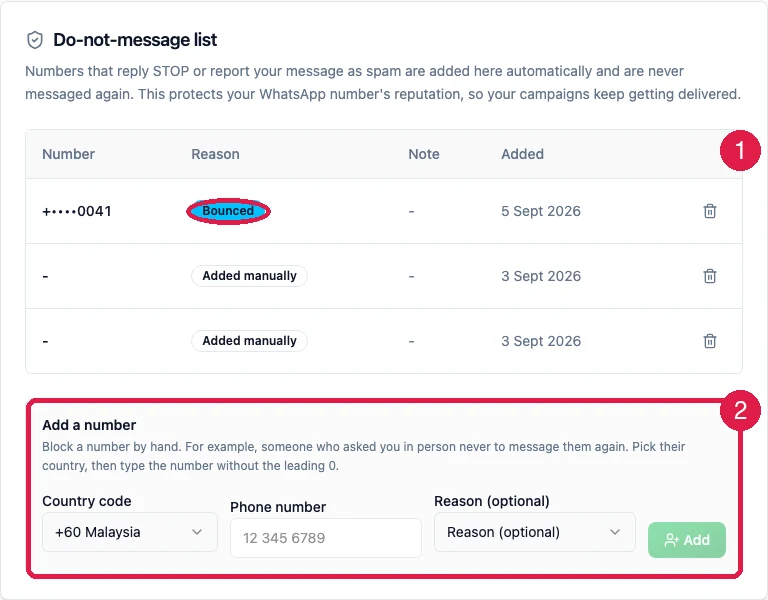
Anyone who replies STOP, or reports your message as spam, is added here automatically and will never
receive another marketing message from you.
1. The list. Each row shows the masked number, the reason it was added, any note, and the date.
Bounced means the number could not be reached. Added manually means someone on your team
added it.2. Add a number. Block a number by hand if someone asked you in person or by phone. Pick the
country code, type the number without the leading zero, add a reason if you like, and press Add.
Never remove someone to message them again. The list is what keeps you on the right side of both
Meta’s rules and Malaysian privacy law. If somebody asked to be left alone, leave them alone. It also
protects your quality rating, because a person who asked to leave and was messaged anyway is the
person most likely to report you.