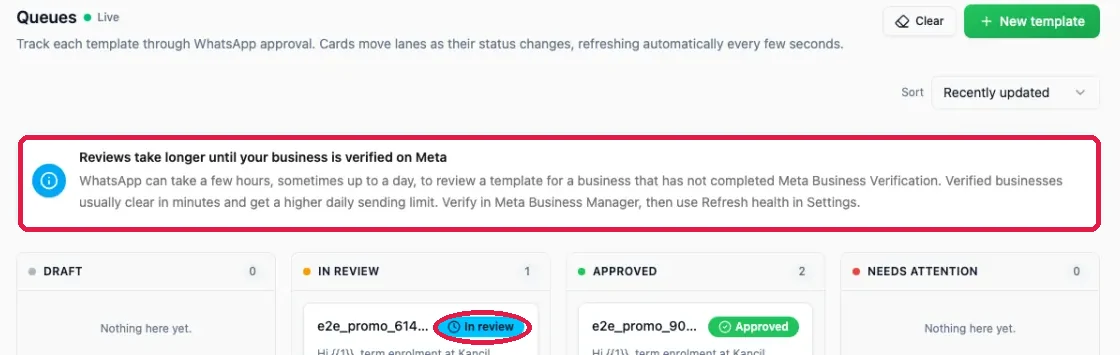
Track every WhatsApp template through approval across four lanes, and understand how long review really takes and why.
The Queues tab is one board showing every template you have, sorted by how far it has got through
WhatsApp approval. It refreshes by itself every few seconds, so you can leave it open and watch a
card move across. The green Live dot next to the heading tells you the refresh is running.
Saved but never submitted. WhatsApp has not seen it.
Finish it and submit it.
IN REVIEW
Sent to WhatsApp. Waiting for an answer.
Wait. Nothing you press makes this faster.
APPROVED
WhatsApp said yes.
Press Set active, then use it in a campaign.
NEEDS ATTENTION
WhatsApp said no, or something else went wrong.
Read the reason, fix it, submit again.
Each lane shows a count, and an empty lane says “Nothing here yet.” Cards carry the same Edit and
Set active buttons as the template tabs, so you can act on a template without leaving this board.
The boxed Set active button on the approved card is the one that decides which version your
campaigns actually use.Clear at the top right hides finished cards so you can see what still needs you. New
template starts a new one from here.
This is the number one question about this tab, and the honest answer depends entirely on whether
your business is verified with Meta.
Your business
Usual wait
Worst case
Verified with Meta
Minutes
A few hours
Not verified
Hours
Up to 72 hours
While your business is unverified, the board shows the boxed notice above the lanes. It says the
same thing as this page: reviews take longer until your business is verified on Meta. The circled
card is one waiting in the IN REVIEW lane.
There is no way to hurry a review. Once a template is in review, nothing in EzFlow and nothing
you do in WhatsApp will speed it up. Resubmitting does not help, and it can cost you credits for
nothing. If it has been sitting for a day and your business is unverified, that is normal, not a
fault.
The real fix is Meta Business Verification. Verifying your business is the one change that
shortens every wait on this page. It needs real documents, usually your SSM certificate with a
business name and address that match what you typed into Meta, and sometimes a website or domain.
It takes days to weeks, so start it well before you need it. It also lifts your daily send limit and
lets your account hold more numbers. Once it is done, press Refresh health in Settings so
EzFlow picks it up.
The card shows the reason WhatsApp gave. Be warned that the reason is often short and not very
helpful, because it comes from Meta and not from EzFlow. Check these in order.
1
Was it submitted as the wrong type?
Utility templates are for things the customer is expecting. If it promotes anything, it belongs in
Marketing Templates instead. This is the most common rejection by a distance.
2
Are the placeholders numbered correctly?
They must start at {{1}} and count up with no gaps, and every one must have a sample.
3
Could it read as spam?
Lots of capital letters, several exclamation marks, or a promise about money tend to get refused.
4
Does the display name match the business?
This one is not about the template at all. It is fixed on the number, not here.
Fix the cause, then submit again. A resubmitted template goes back to the end of the queue, so the
wait starts over.