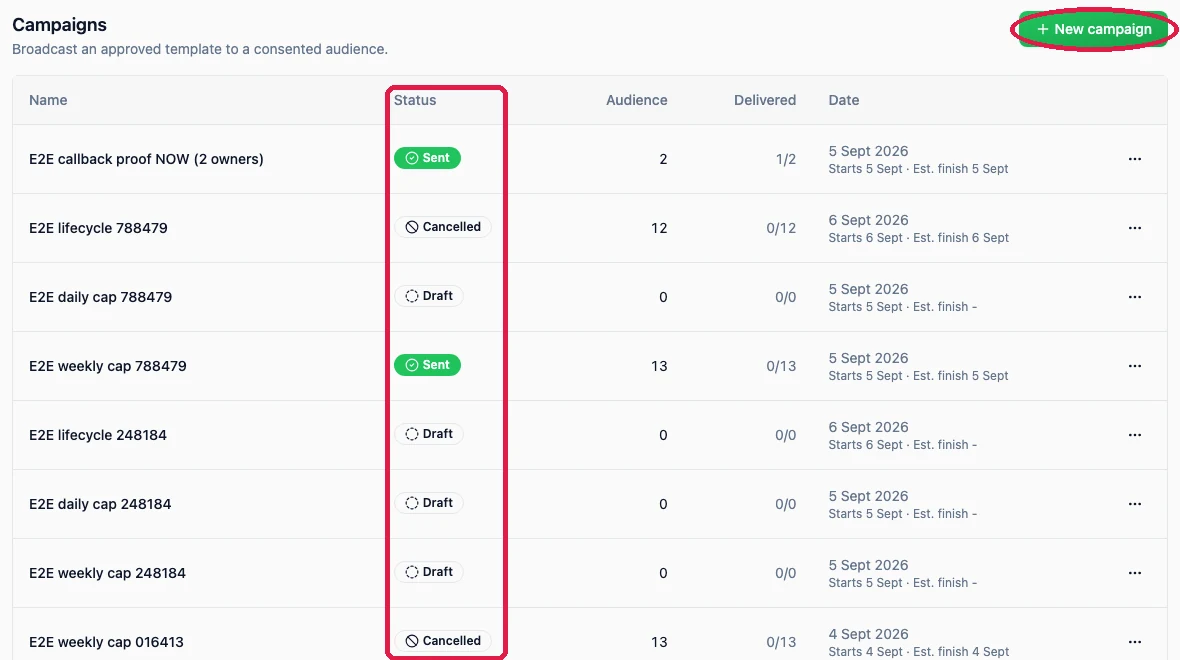
The campaign list
Build a campaign
Press New campaign to start. The wizard has four steps across the top: Audience, then Template, then Preview & cost, then Schedule & send. You move with Continue and Back, and the last button is Launch campaign. You can press Exit at any point before that and nothing is sent.1
Audience: decide who gets it
The heading here is Who should receive this? and the number at the bottom of the step
updates live as you refine it.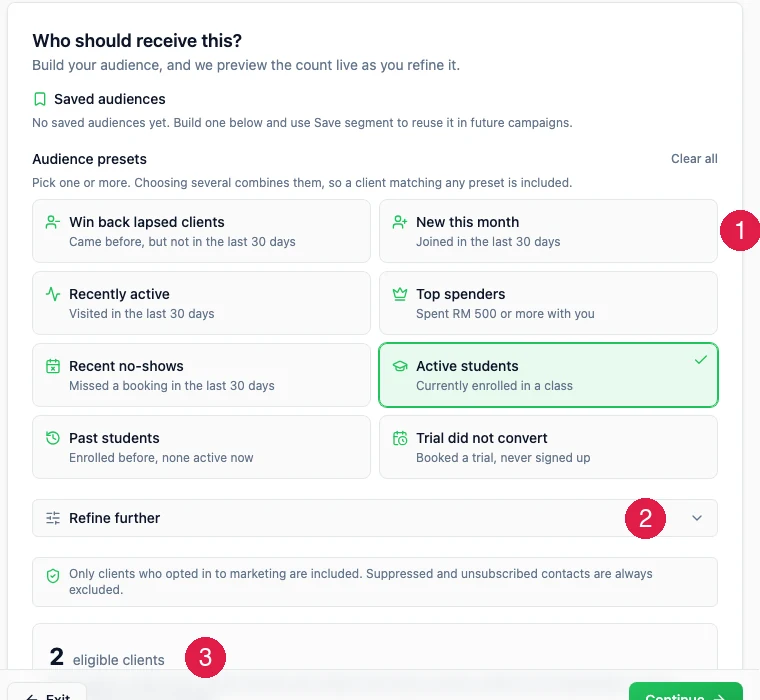 1. Audience presets. There are eight, and each one is a question about your customers that
EzFlow already knows the answer to. Pick one or more. Choosing several combines them, so a
customer who matches any of them is included.
1. Audience presets. There are eight, and each one is a question about your customers that
EzFlow already knows the answer to. Pick one or more. Choosing several combines them, so a
customer who matches any of them is included.
2. Refine further. Open this row to narrow the group with filters such as visit activity,
when they joined, spending and no-show history.3. Eligible clients. This is how many people will actually be messaged. If the number looks
wrong, it usually means the preset is not the one you meant.Save as segment (optional) appears once you have picked something. It stores this group so
you can reuse it next time from Saved audiences at the top of the step.
Only customers who opted in to marketing are counted. People on the do-not-message list and
people who unsubscribed are always left out. The count you see is the count that will actually
be messaged, so do not be surprised if it is lower than your total customer list.
2
Template: pick the message
The heading is Choose a template, and only approved marketing templates appear here. If the
one you want is missing, go back to Templates, check it says
Approved, and press Set active on it.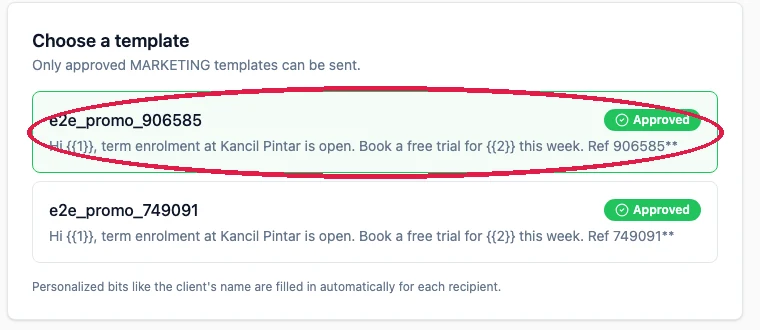 You do not fill in the personalised bits here. EzFlow fills
{{1}}, {{2}} and so on for each
customer automatically, using what you set up in the template’s Personalize section.3
Preview and cost: your last quiet moment
The heading here is Review your campaign. Read the preview once more as if you were the
customer. Check the name looks right, check there is no leftover placeholder showing, and check
the offer is the one you meant.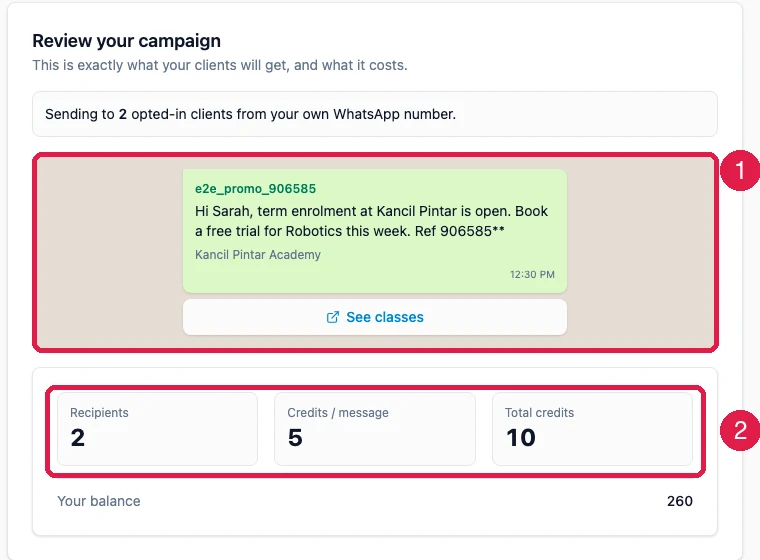 1 is exactly what your customers will get. 2 is what it costs: Recipients,
Credits / message, which is 5 for a marketing message, and Total credits. Under that is
Your balance. If the total is more than your balance, you cannot launch.
1 is exactly what your customers will get. 2 is what it costs: Recipients,
Credits / message, which is 5 for a marketing message, and Total credits. Under that is
Your balance. If the total is more than your balance, you cannot launch.
4
Schedule and send
The heading is Schedule & send. The first line tells you which of your numbers the campaign
will leave from.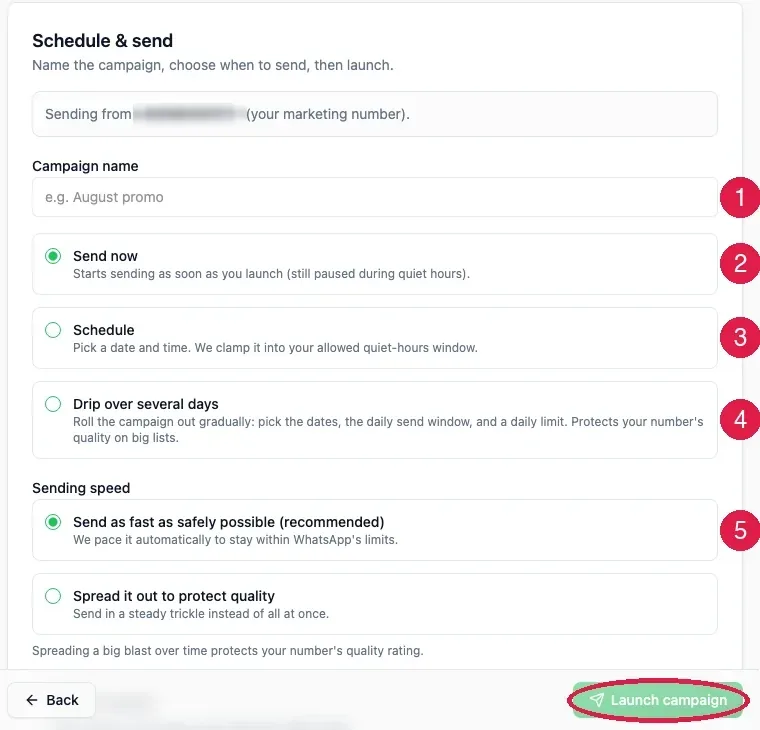 1. Campaign name. This is where you name it, so you can find it in the list later.2. Send now starts sending as soon as you launch. It still respects your quiet hours.3. Schedule lets you pick a date and time. If that time falls inside your quiet hours,
EzFlow moves it to the nearest allowed time.4. Drip over several days rolls a big campaign out gradually. You pick a Start date and
End date, a Daily send window, and a daily limit.
1. Campaign name. This is where you name it, so you can find it in the list later.2. Send now starts sending as soon as you launch. It still respects your quiet hours.3. Schedule lets you pick a date and time. If that time falls inside your quiet hours,
EzFlow moves it to the nearest allowed time.4. Drip over several days rolls a big campaign out gradually. You pick a Start date and
End date, a Daily send window, and a daily limit.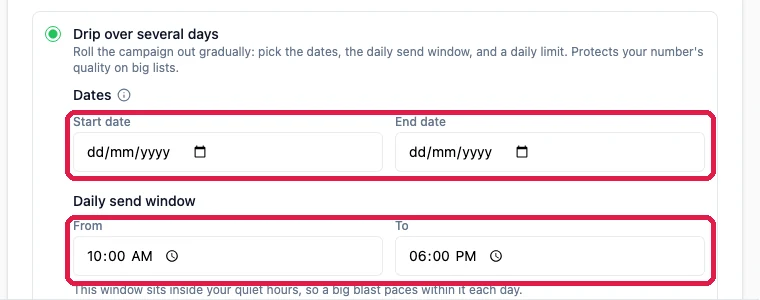 5. Sending speed. Send as fast as safely possible is the default and EzFlow paces it to
stay within WhatsApp’s limits. Spread it out to protect quality sends in a steady trickle
instead of all at once.When everything is set, the step shows Ready to launch with the number of people and the
credits it reserves.Under it is a box with one tick: I confirm every recipient agreed to receive marketing messages
from us on WhatsApp. Launch campaign stays greyed out until you tick it. It is asked for on
every campaign, and EzFlow records who ticked it and when. Tick it only if it is true. Sending to
people who never agreed is what gets a number blocked and what draws complaints.Press Launch campaign.
5. Sending speed. Send as fast as safely possible is the default and EzFlow paces it to
stay within WhatsApp’s limits. Spread it out to protect quality sends in a steady trickle
instead of all at once.When everything is set, the step shows Ready to launch with the number of people and the
credits it reserves.Under it is a box with one tick: I confirm every recipient agreed to receive marketing messages
from us on WhatsApp. Launch campaign stays greyed out until you tick it. It is asked for on
every campaign, and EzFlow records who ticked it and when. Tick it only if it is true. Sending to
people who never agreed is what gets a number blocked and what draws complaints.Press Launch campaign.
If the launch is refused
If launching would go past the daily cap you set in Settings, the step shows Could not launch campaign and nothing is sent. Either wait until tomorrow or raise the cap.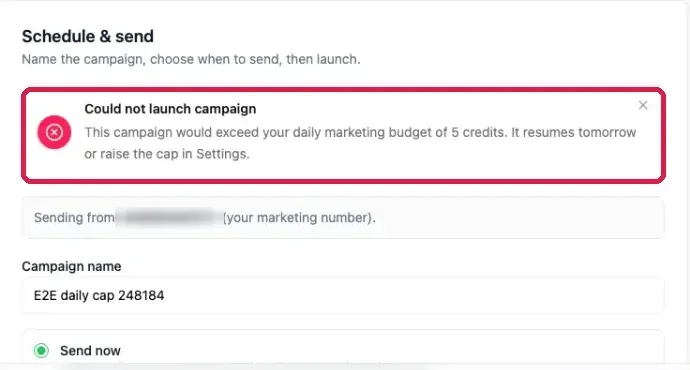
While a campaign is running
Open the campaign from the list to see it working. The counters move as messages go out.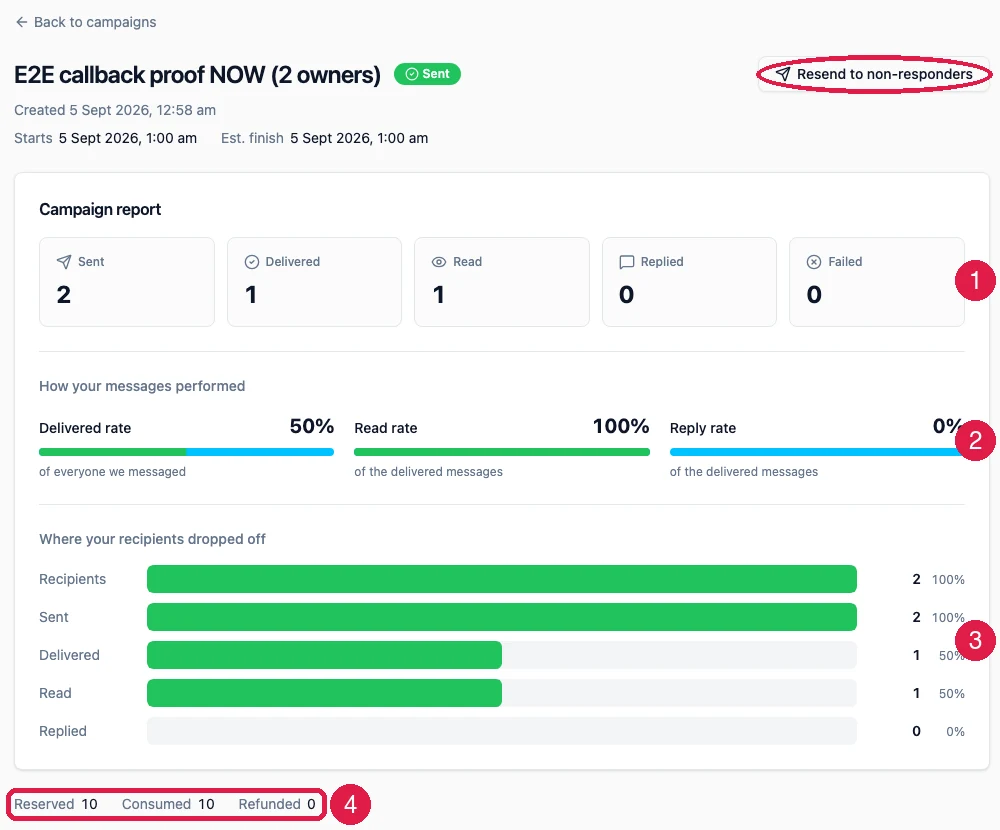
Pause, resume and cancel
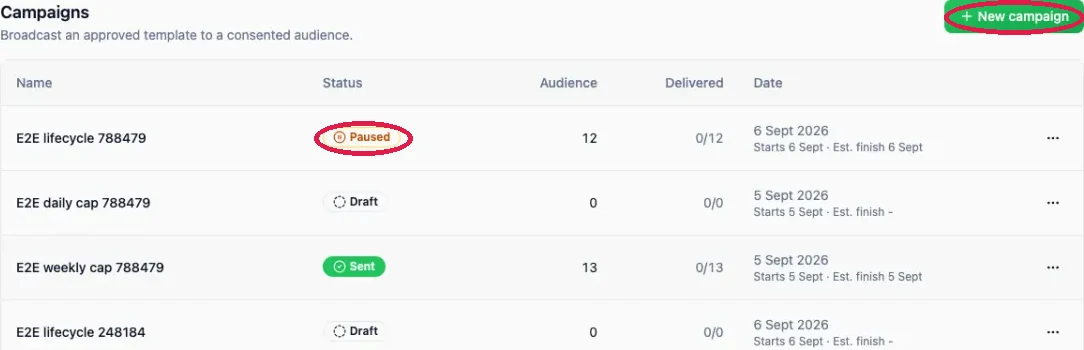
You have two controls. Pause stops sending, and messages already delivered stay delivered. A paused campaign keeps its reserved credits so you can Resume it later. If you pause a scheduled campaign before it starts, resuming it puts it back to waiting for its date rather than sending straight away. Cancel ends the campaign for good, and credits reserved for the messages that were never sent are refunded to your balance.Why some customers were skipped
A campaign can report fewer sends than the audience count, and there are three normal reasons. None of them are errors, and no credits are spent on a skipped customer.- They opted out. They replied STOP at some point, so they are on the do-not-message list for good.
- They hit the weekly limit. EzFlow caps how many marketing messages one person can get in a week. The Recipients table shows “Weekly message limit reached for this client” against them.
- You hit the daily credit cap. Your own daily cap in Settings stopped the campaign before it finished. Raise the cap, or let it continue tomorrow.
Related
Insights
How all your campaigns performed together.
Inbox
The replies it brought in.
Settings
Caps, the do-not-message list and quiet hours.