
Before you start
- Your Facebook login. Meta’s window asks you to sign in to Facebook. EzFlow never sees your password. Meta hands EzFlow a one-time code, nothing more.
- Your phone, switched on and in coverage. Meta proves you control the number by calling it. If you buy the number from EzFlow, that call is forwarded to the phone you use for the business.
- Your real business name. You type it once as the display name and Meta locks it afterwards.
- Room for another number. Before Meta Business Verification, an account can hold 2 numbers. If Add a number is greyed out in Settings, that is usually why. See Limits.
In EzFlow
1
Open the wizard
Go to Marketing, open the Settings tab, and find the Your numbers section. Press
Add a number. The wizard has four steps across the top: Number, then Display name,
then What it sends, then Connect.
2
Choose where the number comes from
Bring my own number is for a phone number you already own, for example the number already
printed on your shopfront. You keep the number, and EzFlow connects it.Get a number from EzFlow buys a fresh Malaysian number for you inside the app. Pick this if
you do not want to use an existing number, or if the number you have is already tied to a
personal WhatsApp account. The wizard shows the monthly price and a short Before you buy
notice before anything is charged.
3
Set the display name
The Display name is the name your customers see at the top of the chat. Use your real
business name, the one on your signboard and your receipts.
4
Say what the number sends
If this is your only number, pick Reminders and marketing. Splitting them across two numbers
is useful later, because a marketing blast that upsets people cannot then damage the number your
booking reminders go out on. You can change this at any time in Settings.
5
Note the number, then press Connect
If you bought the number from EzFlow, the wizard shows it to you now. Write it down or copy it,
because Meta’s window will ask you to type it in a moment. Then press Connect.
In Meta’s window
A Meta window opens on top of EzFlow. Everything from here until the last screen happens inside that window. If Facebook asks you to sign in first, sign in.1
Read what you are agreeing to and press Continue
The first screen says Seamlessly connect your account to EzFlowMY and Twilio, Inc. Twilio is
the company that carries the messages for EzFlow, which is why its name is here. Read it, then
press Continue.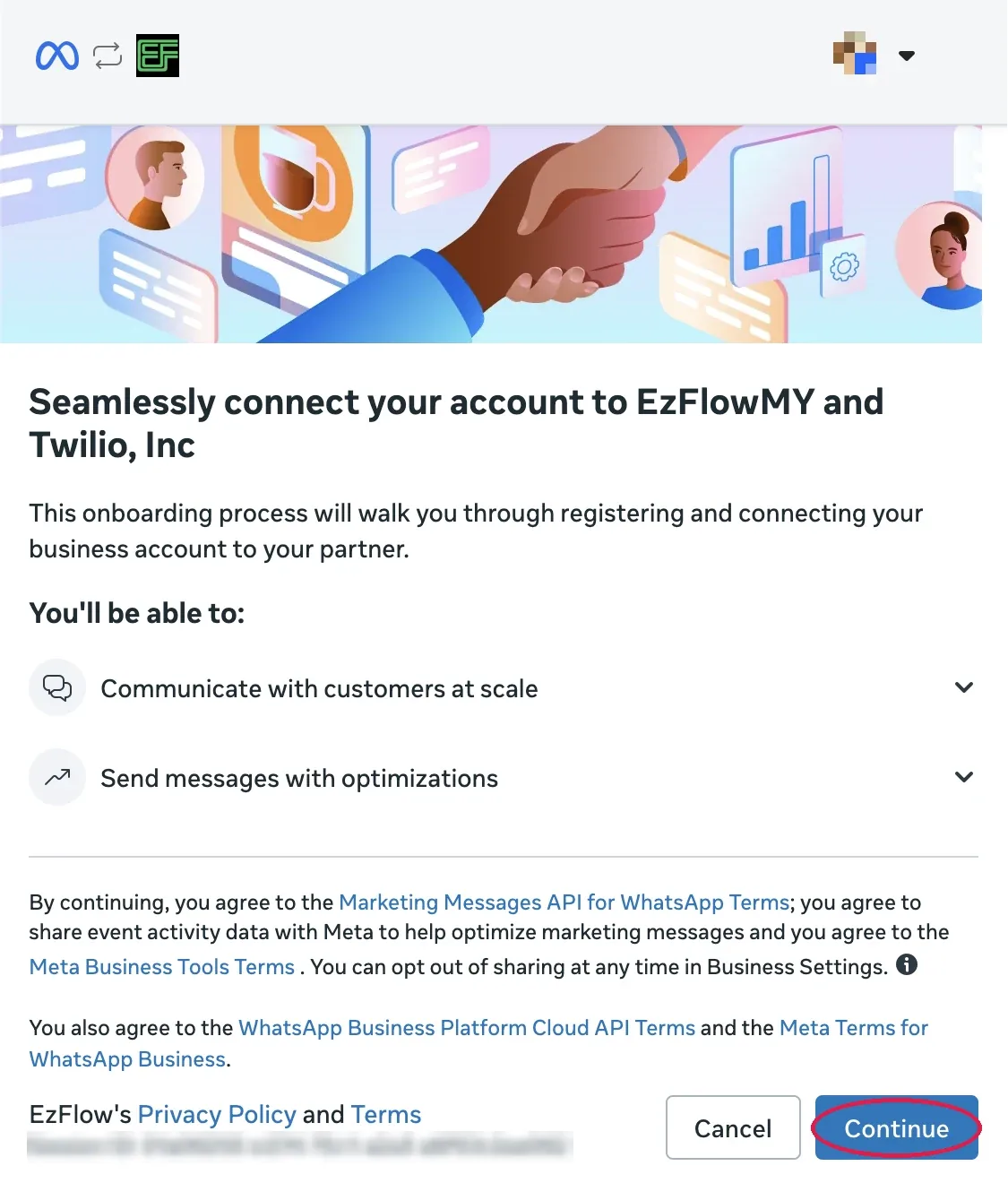
2
Type in the number
Meta asks for the phone number. Leave Enter a new phone number selected. The country box
starts on US +1, marked 1 in the picture. Change it to Malaysia +60, then type the
number without the leading zero.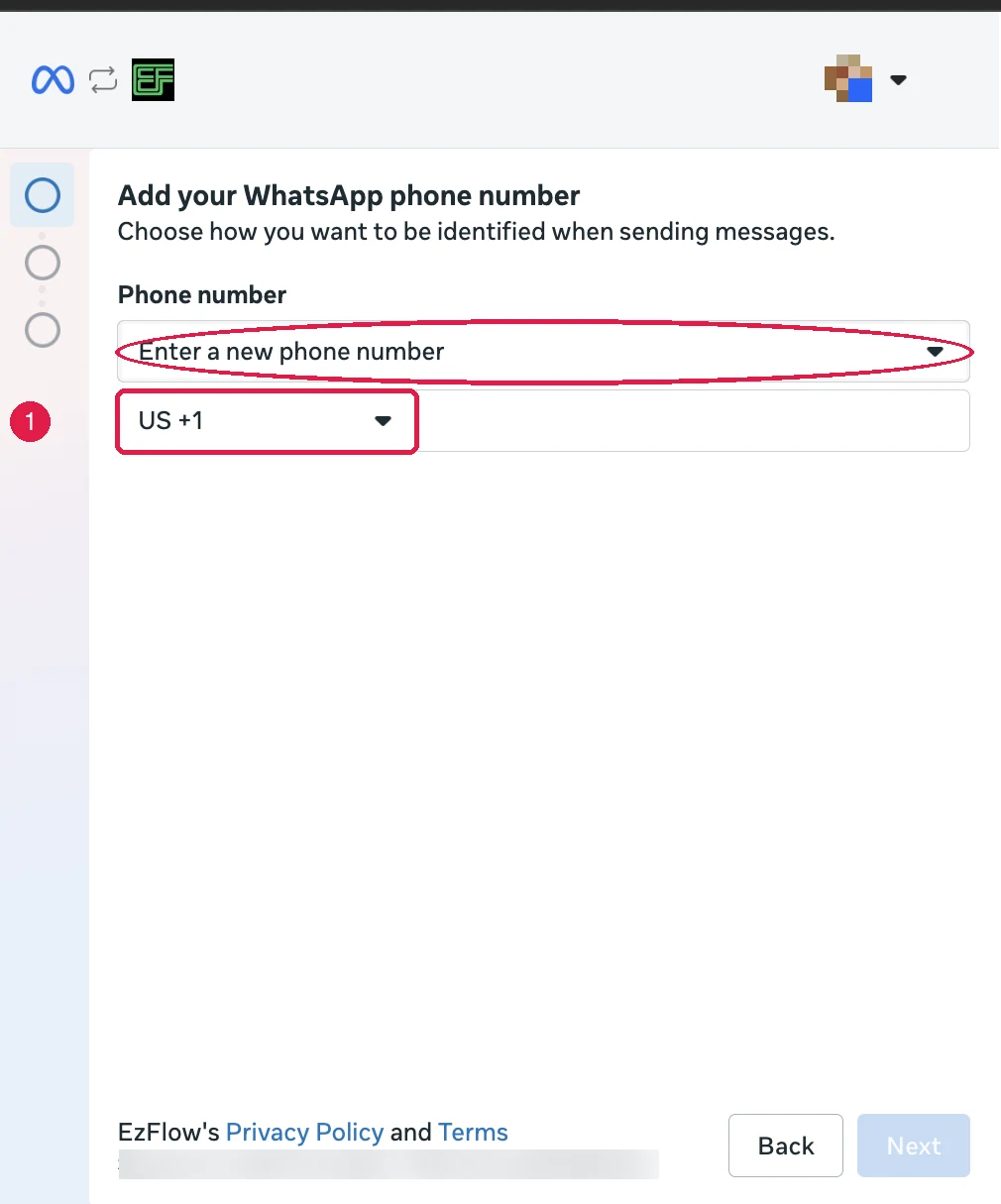 If you bought the number from EzFlow, type that number. If you brought your own, type your own.
3
Choose Phone call, not Text message
Meta needs to prove you control the number, and it offers two ways. This is the step people get
wrong.Meta chooses Text message for you by default. In the picture, the red box shows the option
that is selected and the green circle shows the one you actually want.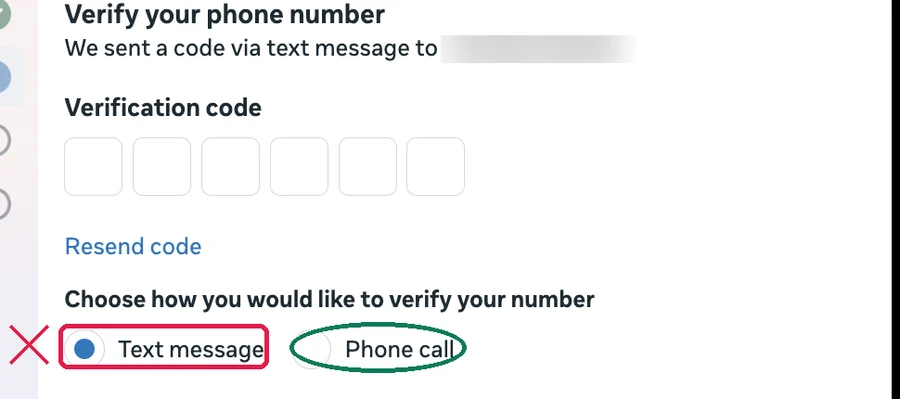 Select Phone call instead. The line at the top then changes to say the code is coming by
phone call, and Meta will ring the number in under a minute.
Select Phone call instead. The line at the top then changes to say the code is coming by
phone call, and Meta will ring the number in under a minute.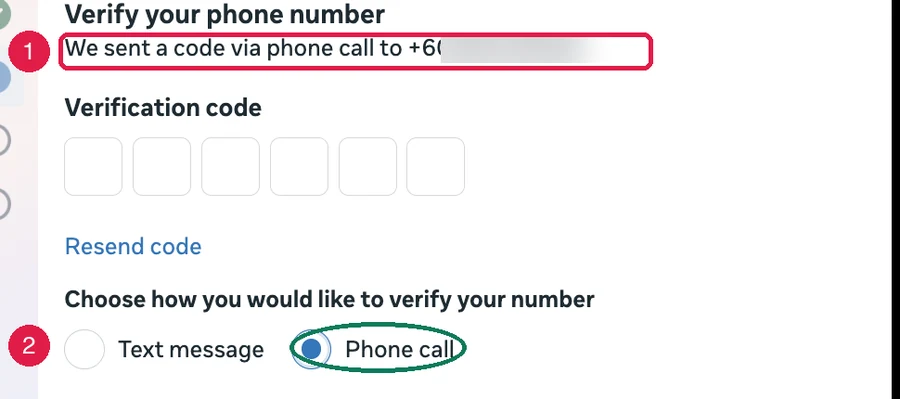 Badge 1 points at the confirmation that Meta is now calling rather than texting. Badge 2
points at the setting that made it do so.When the call comes, you will hear a recorded voice say it is connecting your WhatsApp
verification call, and then read out the code. If you bought the number from EzFlow, the call is
forwarded to the phone you use for the business, so answer that one. Type the code into the six
boxes.
Badge 1 points at the confirmation that Meta is now calling rather than texting. Badge 2
points at the setting that made it do so.When the call comes, you will hear a recorded voice say it is connecting your WhatsApp
verification call, and then read out the code. If you bought the number from EzFlow, the call is
forwarded to the phone you use for the business, so answer that one. Type the code into the six
boxes.
4
If you already pressed the wrong one, wait it out
If you asked for a text message on a number that cannot receive one, Meta makes you wait before
you can change your mind.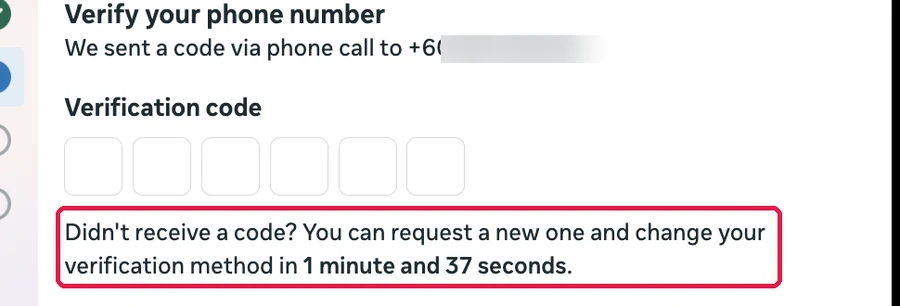 The boxed line tells you how long you have to wait. Read it carefully, because the wait gets
longer every time it happens. The first wait is about a minute, the next is about an hour, and
after that it can be nearly three hours. There is no way to skip it, so the only thing to do is
wait for the countdown to finish and then choose Phone call.
The boxed line tells you how long you have to wait. Read it carefully, because the wait gets
longer every time it happens. The first wait is about a minute, the next is about an hour, and
after that it can be nearly three hours. There is no way to skip it, so the only thing to do is
wait for the countdown to finish and then choose Phone call.
5
Choose your business portfolio
Once the code is accepted, Meta asks which business this number belongs to.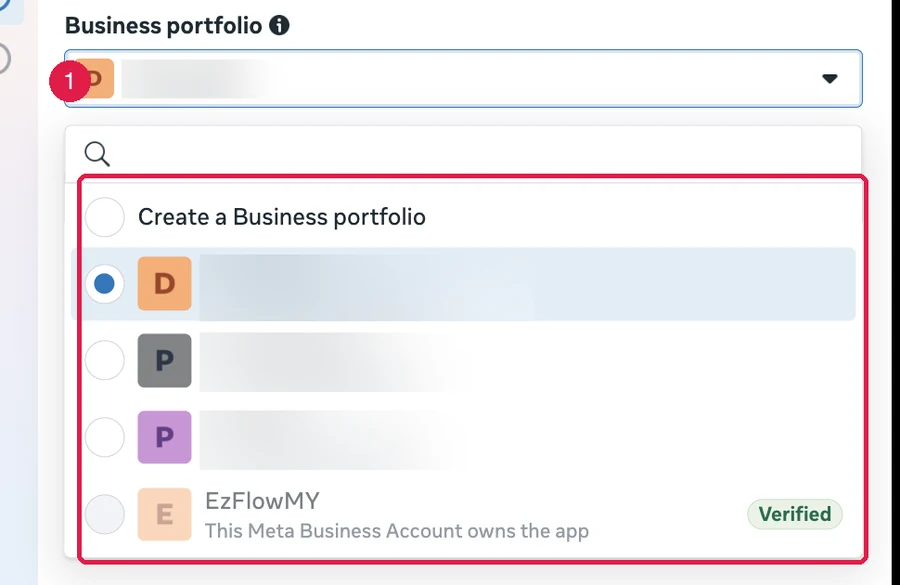 Open the dropdown marked 1 and pick your own business from the list, or choose Create a
Business portfolio if this is your first time. Do not pick EzFlow’s own entry in that list.
Open the dropdown marked 1 and pick your own business from the list, or choose Create a
Business portfolio if this is your first time. Do not pick EzFlow’s own entry in that list.
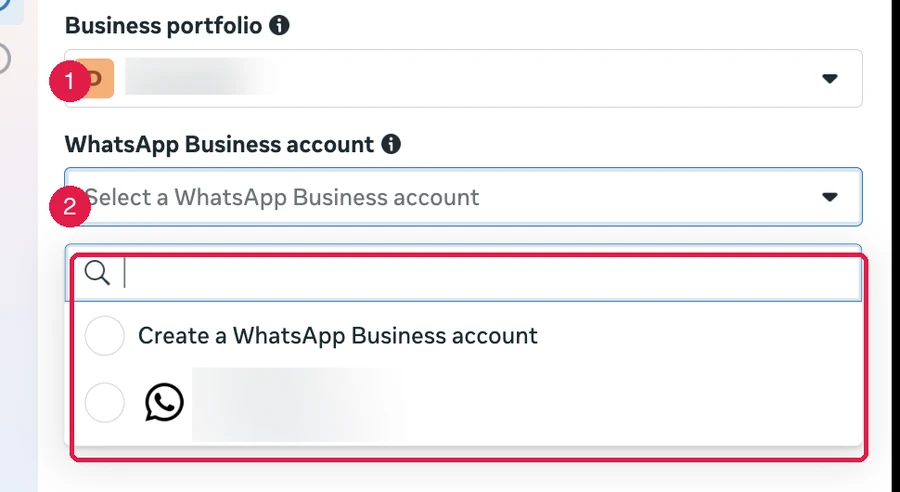
6
Choose the WhatsApp Business account
7
Confirm what EzFlow may do
Meta shows you exactly what EzFlow will be allowed to do with your WhatsApp account, which is to
send your messages and show you the replies. Read it, then press Confirm.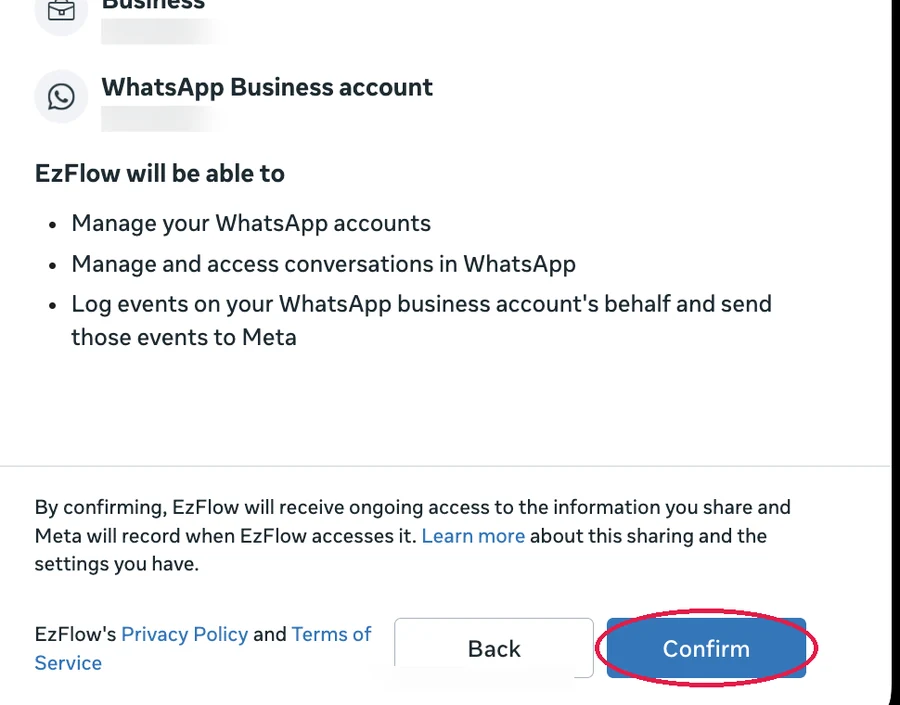
8
Wait for the connecting screen to finish
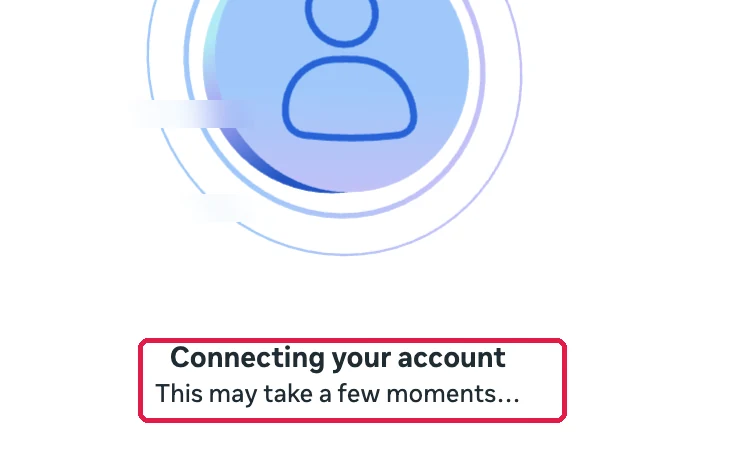
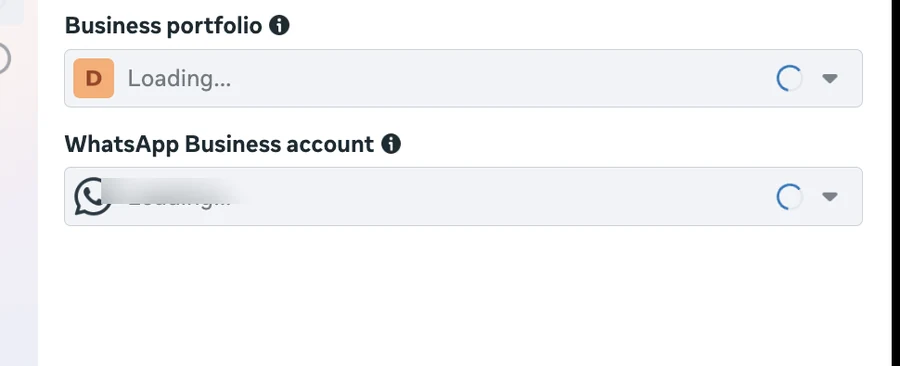
EzFlow already has what it needs. The moment you pressed Confirm, Meta handed EzFlow a
sign-in code, and a few seconds later EzFlow starts connecting the number on its own. You can
leave this window open or close it. Nothing is lost either way.
9
Press Finish (optional)
When the spinner stops you will see a screen saying your account is connected. Press Finish
to close Meta’s window. It is tidy, not required: EzFlow does not wait for this click any more.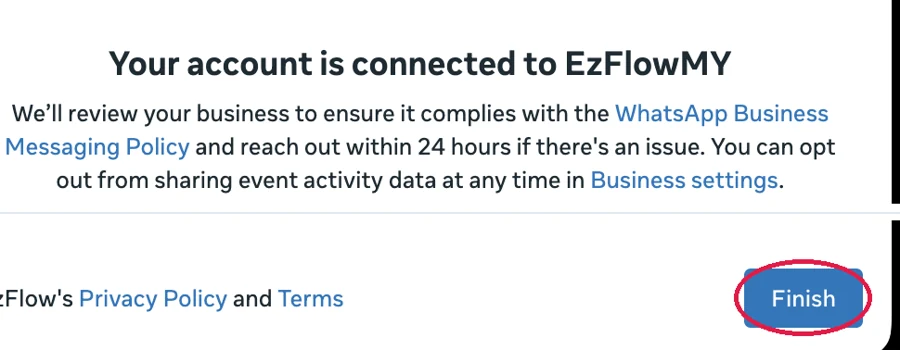
Check it worked
Go back to Settings and look at Your numbers. Right after Meta’s window, the card shows a Registering badge and a blue box saying WhatsApp is finishing the registration. You do not need to press anything or refresh. The card checks itself every ten seconds and turns to a green Active badge, usually within a minute or two. If the button on the card says Waiting for Meta, Meta is still adding the number to your account. EzFlow keeps checking by itself for up to ten minutes. If the card instead still says Setting up and shows the blue box headed This number is not connected yet, the sign-in never reached EzFlow (for example, the page was closed before you pressed Confirm).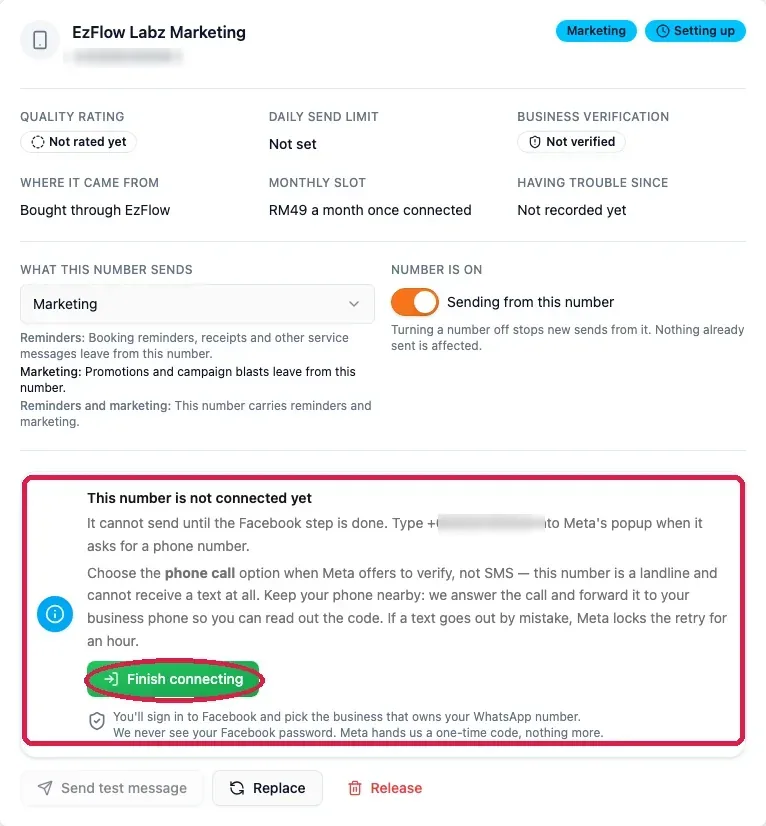
Limits worth knowing before you buy a second number
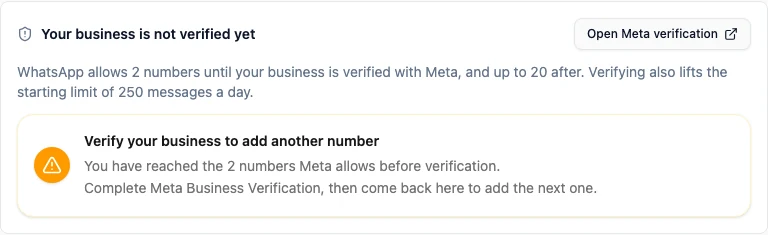
- Before your business is verified with Meta, your WhatsApp account can hold 2 numbers. After verification it can hold 20. When you are at the limit, Add a number is greyed out and Settings tells you why.
- Before verification you can send to about 250 customers a day. Verification raises this a lot.
- An extra number is a paid add-on. Bringing your own number costs RM29 a month for the slot, and a number bought from EzFlow costs RM49 a month. Your first number is free.
- Changing a number is free once every 30 days across all your numbers (a rolling 30 days from your last free change), and RM49 for any change beyond that.
- Meta Business Verification needs real documents, usually your SSM certificate with a name and address that match what you gave Meta. It takes days to weeks. Press Open Meta verification on the card above to start it, and start it early.
Related
Settings
Managing numbers once they are connected.
Templates
The next thing to do.